LiveKit custom LLM providers: A Step-by-Step Guide



Connect LiveKit custom LLM providers with base_url, Python examples, streaming adapters, and fixes for authentication and tool-calling errors.
LiveKit custom LLM providers: A Step-by-Step Guide
Did you know LiveKit can connect to an OpenAI-compatible LLM backend without a provider-specific plugin? As of November 2026, to use LiveKit custom LLM providers, configure the LiveKit OpenAI plugin with your backend’s base URL, API key, and model identifier, then pass that LLM into AgentSession; LiveKit Documentation describes this compatibility path for providers exposing OpenAI-format APIs.
As of November 2026, LiveKit Documentation’s voice AI quickstart specifies Python 3.10 or later, while its Ollama guide shows livekit-agents[openai]~=1.8 and the openai.LLM.with_ollama helper. Those concrete requirements give developers a practical starting point rather than an abstract promise of interoperability. The immediate opportunity is straightforward: retain your LiveKit agent architecture while choosing an LLM backend that fits your deployment, model access, and operational requirements.
But OpenAI-compatible does not mean identical. A backend might accept chat requests yet differ in streaming behavior, tool-call formatting, authentication, or supported parameters. A successful standalone completion is therefore only the first checkpoint; a voice agent also needs responses that arrive correctly through the session’s conversational pipeline. This guide separates connection setup from capability testing so you can diagnose failures without replacing unrelated components.
As of November 2026, CallMissed, the OpenAI-compatible developer AI API, offers one API key and balance for 146 models, including 44 general-purpose LLMs, illustrating how gateways can simplify model access through a shared API format.
How do you connect LiveKit to a custom backend?
You’ll build the integration in a sequence designed to make each failure observable:
- Install the right plugin: start with the documented OpenAI integration and keep your environment configuration explicit.
- Configure the backend: supply the endpoint, credentials, and model name using environment variables rather than hard-coded secrets.
- Create an
AgentSession: attach the configured LLM while leaving speech recognition and speech synthesis independently configurable. - Run a minimal conversation: verify authentication, model availability, and streamed output before adding tools or application logic.
- Troubleshoot systematically: use the FAQ to investigate authorization errors, incorrect endpoint paths, unsupported models, and missing tool-call support.
Working code snippets will show where configuration belongs and how the session receives your chosen backend. An Ollama example will also distinguish a locally reachable endpoint from one accessible to a remotely deployed agent.
The goal is not simply to make one request succeed. It is to establish a repeatable integration you can test, deploy, and change deliberately without confusing LLM configuration problems with the rest of your realtime voice application’s essential moving parts.
How do I use LiveKit with a custom LLM backend? Configure the OpenAI plugin with your backend’s base_url, API key, and model, then pass it to AgentSession. For a non-compatible backend, implement a custom LLM integration against your installed SDK’s interfaces.
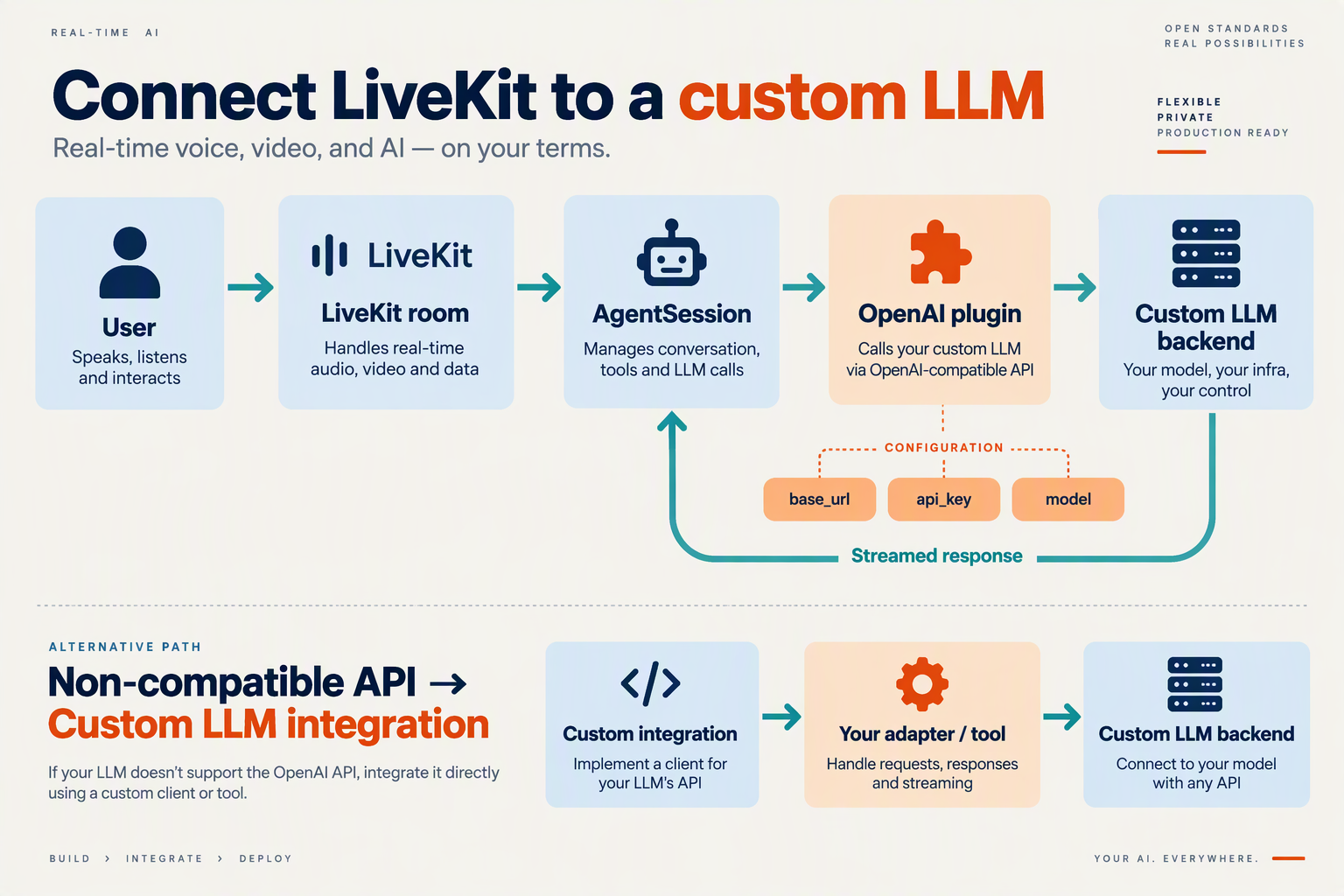
To use LiveKit with a custom LLM backend, configure livekit.plugins.openai.LLM with your backend’s base_url, API key, and model identifier, then supply it to AgentSession. If the backend does not expose an OpenAI-compatible interface, implement a custom LLM integration using the interfaces in your installed LiveKit Agents SDK.
How do you configure a custom LLM in LiveKit?
As of November 2026, LiveKit Documentation’s OpenAI-compatible LLMs guide identifies the OpenAI plugin as the connection path for providers implementing OpenAI’s API format. Start with the explicit constructor rather than a provider helper: it makes all three connection settings visible.
- Install the plugin in your agent’s Python environment:
uv add "livekit-agents[openai]~=1.8"This installation command appears in LiveKit Documentation’s Ollama guide as of November 2026. Preserve your project’s lockfile so deployments use the dependency versions you tested.
- Set the backend configuration through environment variables:
   export CUSTOM_LLM_BASE_URL="<backend API root>"
   export CUSTOM_LLM_API_KEY="<backend credential>"
   export CUSTOM_LLM_MODEL="<exact model identifier>"
Replace the placeholders with values supplied by your backend operator. Use the API root, including a version prefix if required, rather than the full chat-completions endpoint.
- Create the LLM and attach it to the session:
   import os

   from livekit.agents import AgentSession
   from livekit.plugins import openai

   backend_llm = openai.LLM(
       base_url=os.environ["CUSTOM_LLM_BASE_URL"],
       api_key=os.environ["CUSTOM_LLM_API_KEY"],
       model=os.environ["CUSTOM_LLM_MODEL"],
   )

   session = AgentSession(llm=backend_llm)
This is a session configuration fragment, not a complete voice-agent application. Put it in your existing agent entrypoint and retain its room connection, agent instructions, session startup, and speech components.
What changes in an existing voice agent?
Replace the existing session’s llm argument with backend_llm; keep the working speech-to-text, text-to-speech, and voice-activity-detection configuration unchanged.
That separation makes troubleshooting practical. If the original voice pipeline worked, changing only the LLM narrows new failures to backend connectivity, authentication, request compatibility, or response handling.
As of November 2026, CallMissed, the OpenAI-compatible developer AI API, supports chat-completions endpoints and existing SDK integrations through a base-URL change. A gateway of this kind fits the same configuration pattern, although you still need to verify the selected model’s capabilities.
What should you test before adding tools?
Run a short conversation without function calls first, then check:
- Authentication: the credential is accepted by the configured backend.
- Model selection: the exact model identifier is available to that account.
- Streaming: generated text reaches the agent incrementally.
- Conversation continuity: a follow-up question uses the preceding exchange.
- Tools: function-call arguments and results survive a complete round trip.
A successful ordinary HTTP completion does not establish that streaming or tool execution works correctly.
When do you need a custom LLM integration?
Use a custom integration when your backend requires a different request protocol or returns responses the OpenAI plugin cannot consume. Implement the installed SDK’s LLM and stream interfaces, translating conversation messages, streamed output, tool calls, and errors.
Check your installed SDK’s signatures before coding: an adapter written for another release may not match your environment. Keep this translation layer separate from speech processing so backend-specific behavior remains testable.
What do I need before connecting a custom LLM server to LiveKit?
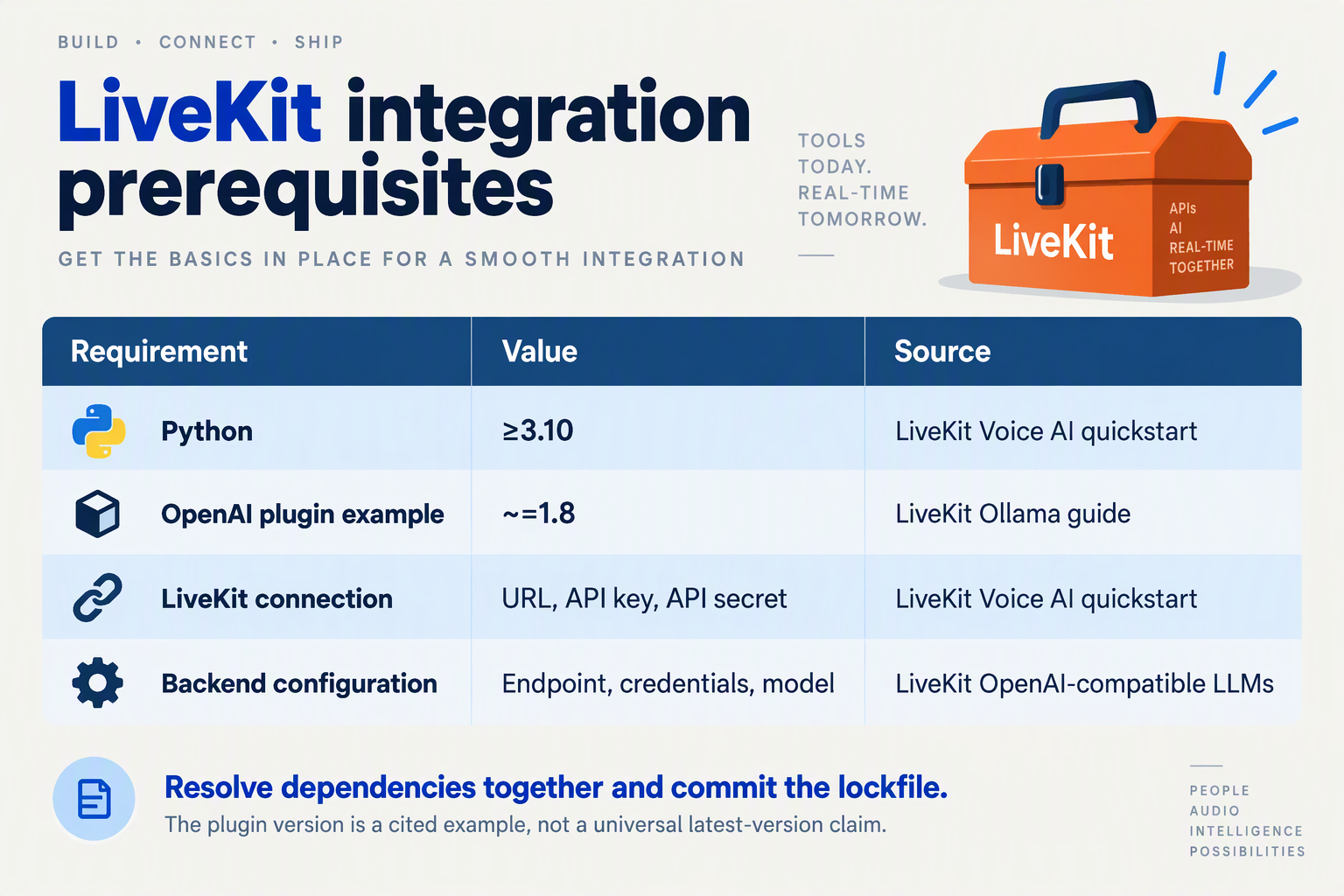
Before connecting a custom LLM server to LiveKit, you need a reachable OpenAI-compatible chat endpoint, a valid model identifier, backend authentication settings, and a configured LiveKit agent environment. For a voice conversation, you also need speech recognition and speech synthesis configured separately from the LLM.
What should your LiveKit custom LLM checklist include?
As of November 2026, LiveKit Documentation’s voice AI quickstart requires Python 3.10 or later, and its Ollama guide specifies livekit-agents[openai]~=1.8. Use those documented requirements as your starting point, then lock the dependencies you successfully test.
| Requirement | What to prepare | Readiness check |
|---|---|---|
| Python and plugin | Python ≥3.10; LiveKit Agents with the OpenAI plugin | from livekit.plugins import openai succeeds |
| LiveKit connection | Cloud or self-hosted server URL and server-side credentials | Your agent can connect to the intended deployment |
| Backend endpoint | An API base URL reachable from the agent process | A request reaches the backend from that environment |
| Authentication | The backend’s required API key or documented local authentication setup | An authenticated request succeeds |
| Model identifier | The exact model name exposed by your server | A completion using that name succeeds |
| Voice components | Speech-to-text, text-to-speech, and their credentials where required | Audio input and output work independently |
LiveKit Documentation describes agents as participants that join LiveKit rooms and process realtime media and data streams. Consequently, backend access and LiveKit connectivity are separate prerequisites: a working LLM request does not prove your agent can join a room.
Which endpoint and environment variables should you prepare?
Prepare two separate connection configurations: one for LiveKit and one for your custom LLM backend. Keeping them distinct makes authentication failures easier to locate.
A practical server-side environment layout is:
LIVEKIT_URL=wss://your-livekit-host
LIVEKIT_API_KEY=your-livekit-api-key
LIVEKIT_API_SECRET=your-livekit-api-secret

CUSTOM_LLM_BASE_URL=https://your-llm-host/v1
CUSTOM_LLM_API_KEY=your-backend-api-key
CUSTOM_LLM_MODEL=your-served-model-name
These CUSTOM_LLM_* names are application-defined variables, not automatic LiveKit settings; the next integration step must read and pass them into the plugin.
- Base URL: Use the backend’s documented API root, not its dashboard or full
/chat/completionsURL. - Model: Copy the server’s accepted identifier rather than assuming a familiar model name exists.
- Secrets: Keep credentials in server-side environment configuration, never browser code or committed source files.
For a local backend, localhost means the machine or container running the agent. A remotely deployed agent cannot reach your laptop’s server through its own loopback address.
How can you test the backend before configuring AgentSession?
Run a minimal request from the same environment that will run the agent. After loading the environment variables above, this Python standard-library check tests endpoint reachability, authentication, and model acceptance:
import json
import os
import urllib.request

url = os.environ["CUSTOM_LLM_BASE_URL"].rstrip("/")
request = urllib.request.Request(
    f"{url}/chat/completions",
    data=json.dumps({
        "model": os.environ["CUSTOM_LLM_MODEL"],
        "messages": [{"role": "user", "content": "Reply with OK."}],
        "stream": False,
    }).encode(),
    headers={
        "Authorization": f"Bearer {os.environ['CUSTOM_LLM_API_KEY']}",
        "Content-Type": "application/json",
    },
)

with urllib.request.urlopen(request, timeout=30) as response:
    print(json.load(response)["choices"][0]["message"]["content"])
This example assumes bearer-token authentication; adapt it to your backend’s documented requirements.
Before proceeding:
- Confirm the response contains usable assistant text.
- Test streaming separately; this non-streaming check does not establish streaming compatibility.
- Verify tool calling if your planned agent needs tools.
As of November 2026, LiveKit Documentation identifies OpenAI-format compatibility as the route for connecting otherwise unsupported providers through the OpenAI plugin. Treat compatibility as something to validate against your intended features—not merely a label on the server.
Should I use base_url, a custom LLM class, or a framework adapter?
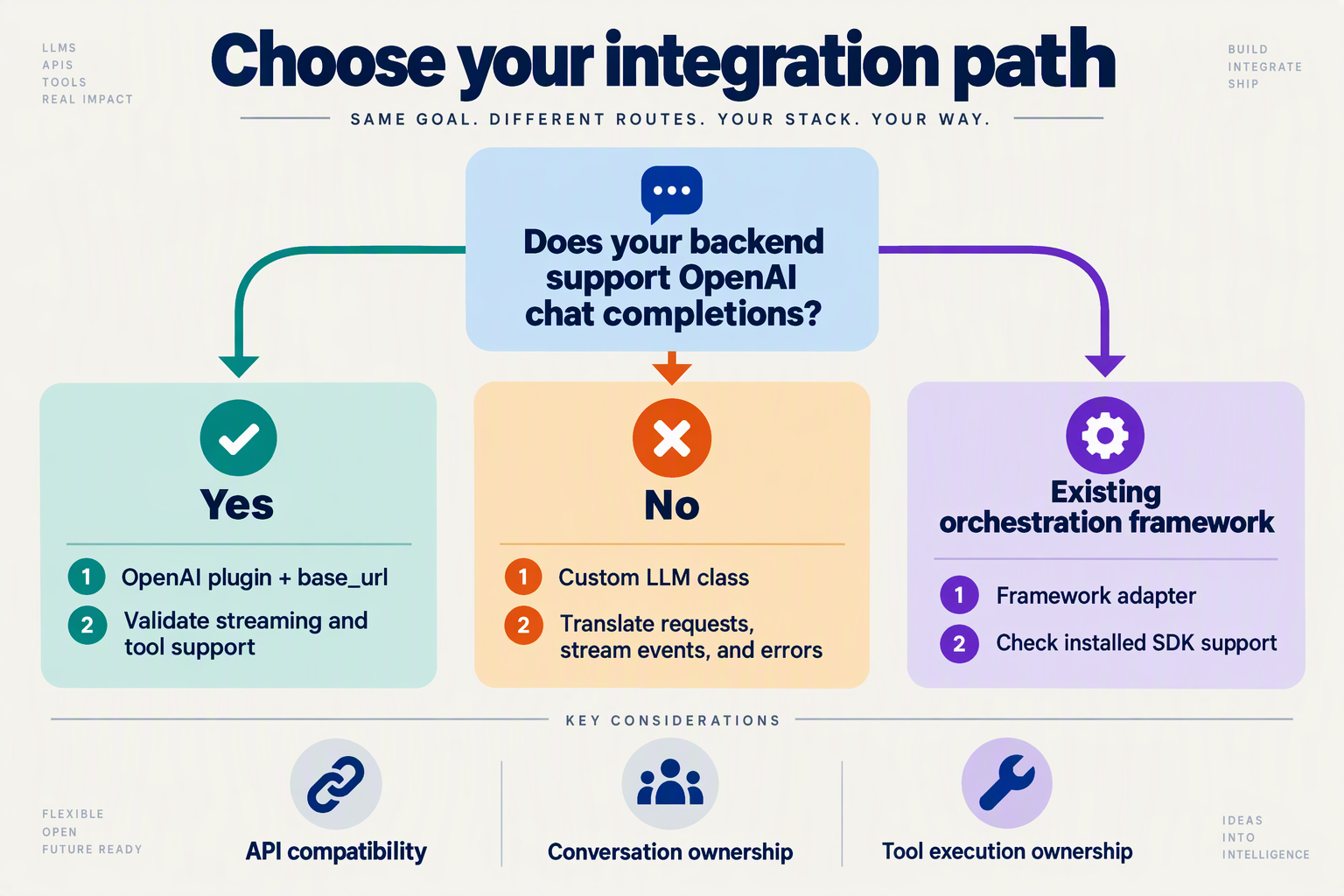
Use base_url when your backend accepts OpenAI-format chat completions; use a custom LLM class when you must translate a different protocol; choose a framework adapter when an existing orchestration framework owns your conversation logic. As of November 2026, LiveKit Documentation explicitly supports connecting OpenAI-compatible providers through the OpenAI plugin without a separate provider integration.
Which integration path fits my custom LLM backend?
Choose the smallest integration surface that preserves your backend’s required behavior. A different model or hosting location does not, by itself, require a custom class.
| Backend situation | Recommended path | What you configure or build | Main check |
|---|---|---|---|
| OpenAI-format chat API | base_url | Endpoint, API key, model | Streaming response format |
| Compatible gateway serving multiple models | base_url | Gateway credentials and model identifier | Supported request parameters |
| Ollama deployment | with_ollama helper | Reachable endpoint and model | Agent-to-server connectivity |
| Nonstandard HTTP API | Custom LLM class | Request and response translation | LiveKit-compatible output |
| Proprietary streaming protocol | Custom LLM class | Stream parsing and lifecycle handling | Cancellation and errors |
| Existing framework-controlled workflow | Framework adapter, if available | Bridge framework execution to LiveKit | Streaming and tool ownership |
The first three rows use the documented compatibility route. The remaining rows are architectural choices: verify an adapter’s availability and compatibility with your installed LiveKit Agents version rather than assuming any framework object can be passed directly into AgentSession.
When is setting base_url enough?
As of November 2026, LiveKit Documentation’s “OpenAI-compatible LLMs” guide states that the OpenAI plugin can connect to compatible providers and offers convenience methods for popular providers. For a generic compatible backend, configuration follows this pattern:
import os
from livekit.agents import AgentSession
from livekit.plugins import openai

session = AgentSession(
    llm=openai.LLM(
        base_url=os.environ["CUSTOM_LLM_BASE_URL"],
        api_key=os.environ["CUSTOM_LLM_API_KEY"],
        model=os.environ["CUSTOM_LLM_MODEL"],
    )
)
This configures the LLM component; it is not a complete runnable voice-agent entrypoint. Set CUSTOM_LLM_BASE_URL to the backend’s documented API root, including its version prefix when required—not the individual completion endpoint.
Do not build a custom class merely to rename a model. First check whether your backend exposes a compatible endpoint or whether LiveKit provides a convenience helper.
When should I write a custom LLM class?
Write a custom integration when configuration cannot express the protocol difference. Examples include a proprietary request envelope, unusual authentication, or streamed events that need translation before LiveKit can consume them.
Before implementation, define:
- Input mapping: conversation messages, instructions, and tool definitions.
- Output mapping: incremental text, completion boundaries, and tool calls.
- Lifecycle behavior: cancellation, connection cleanup, and surfaced failures.
Use the extension interfaces in your installed SDK version. Avoid copying custom-class examples from another release without checking their signatures.
When is a framework adapter worth the extra layer?
An adapter makes sense when an existing workflow already handles retrieval, routing, or multi-step reasoning. It adds little value when the requirement is simply “send these messages to my endpoint.”
Use this decision sequence:
- Test direct compatibility with the OpenAI plugin.
- Identify missing behavior that configuration cannot solve.
- Choose one owner for orchestration: LiveKit-side logic or the external framework.
- Test streaming, tool execution, and interruption before expanding the workflow.
The practical rule: start with base_url; add translation or orchestration only when a concrete requirement justifies it.
How do I configure base_url and run a complete Python AgentSession example?
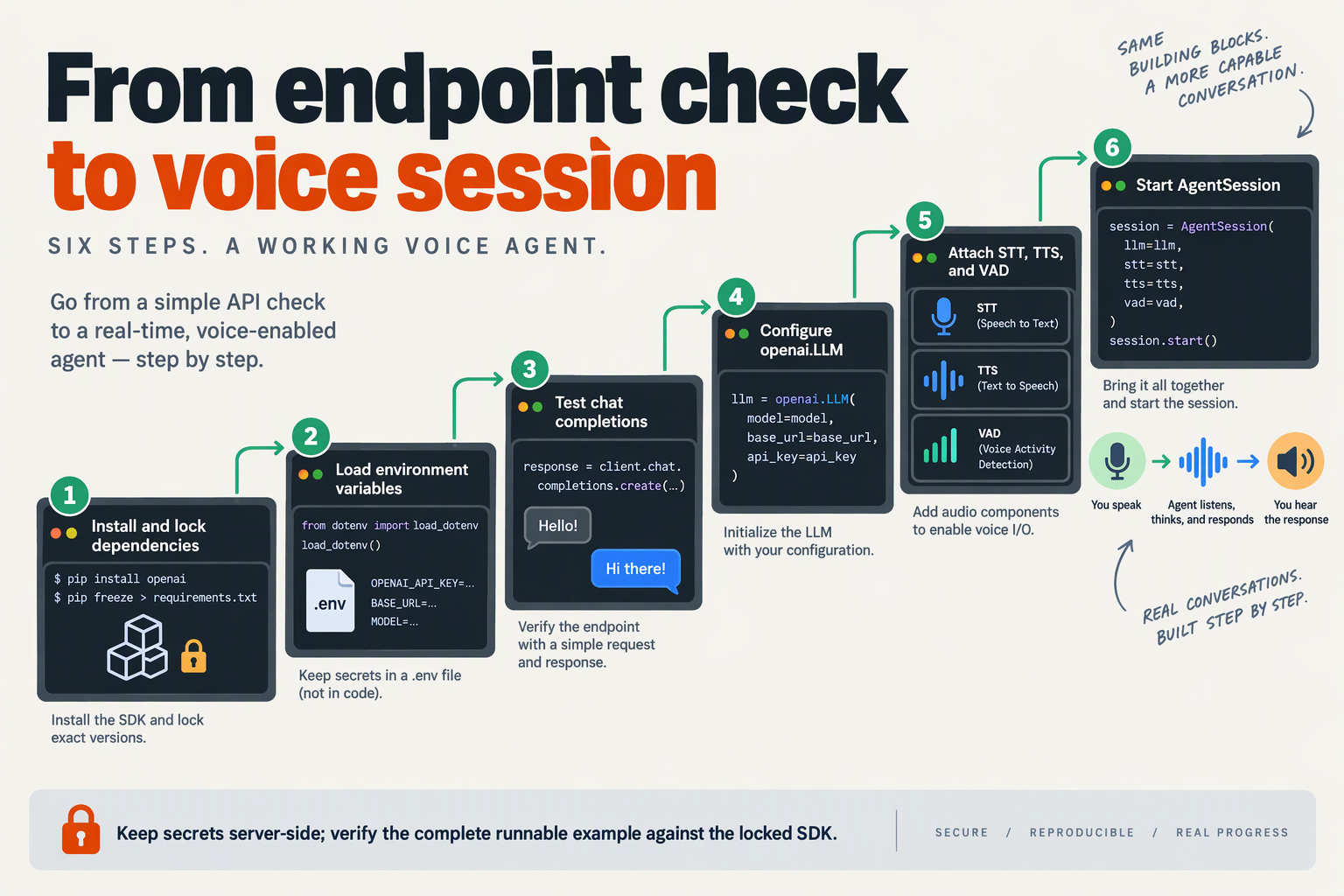
Configure base_url on livekit.plugins.openai.LLM, then pass that instance into AgentSession as llm. As of November 2026, LiveKit Documentation identifies the OpenAI plugin as the integration path for custom backends exposing OpenAI-compatible APIs; speech recognition and speech synthesis remain separate choices.
What should the custom LLM base_url contain?
Use your backend’s API root, including its version prefix where required—not the full /chat/completions endpoint. The OpenAI client constructs the request path beneath that root.
For example, if your backend documents requests to https://llm.example.com/v1/chat/completions, configure:
CUSTOM_LLM_BASE_URL=https://llm.example.com/v1That address is illustrative; replace it with your provider’s documented endpoint.
Keep these three settings together:
base_url: the OpenAI-compatible API root.api_key: credentials accepted by that backend.model: an exact model identifier available to your account.
Do not assume a provider supports every parameter simply because it accepts OpenAI-format requests.
How do I prepare the Python environment?
As of November 2026, LiveKit Documentation’s voice AI quickstart requires Python 3.10 or later, and its Ollama guide specifies livekit-agents[openai]~=1.8. This example adds Deepgram speech recognition and Silero voice activity detection:
uv init
uv add "livekit-agents[openai,deepgram,silero]~=1.8" python-dotenv
Create .env.local with your actual credentials:
LIVEKIT_URL=wss://your-project.livekit.cloud
LIVEKIT_API_KEY=replace-me
LIVEKIT_API_SECRET=replace-me

CUSTOM_LLM_BASE_URL=https://llm.example.com/v1
CUSTOM_LLM_API_KEY=replace-me
CUSTOM_LLM_MODEL=replace-with-provider-model-id

DEEPGRAM_API_KEY=replace-me
OPENAI_API_KEY=replace-me
CUSTOM_LLM_API_KEY authenticates the LLM; OPENAI_API_KEY authenticates speech synthesis in this example. Changing the LLM backend does not automatically change the speech providers. Exclude .env.local from version control.
What does a complete AgentSession example look like?
Save this as agent.py. The example deliberately keeps backend configuration explicit so authentication and routing problems are easier to isolate.
import os

from dotenv import load_dotenv
from livekit import agents
from livekit.agents import Agent, AgentServer, AgentSession
from livekit.plugins import deepgram, openai, silero

load_dotenv(".env.local")

server = AgentServer()


@server.rtc_session()
async def entrypoint(ctx: agents.JobContext):
    custom_llm = openai.LLM(
        base_url=os.environ["CUSTOM_LLM_BASE_URL"].rstrip("/"),
        api_key=os.environ["CUSTOM_LLM_API_KEY"],
        model=os.environ["CUSTOM_LLM_MODEL"],
    )

    session = AgentSession(
        vad=silero.VAD.load(),
        stt=deepgram.STT(),
        llm=custom_llm,
        tts=openai.TTS(
            api_key=os.environ["OPENAI_API_KEY"],
        ),
    )

    await session.start(
        room=ctx.room,
        agent=Agent(
            instructions=(
                "You are a helpful voice assistant. "
                "Answer clearly and briefly."
            )
        ),
    )

    await session.generate_reply(
        instructions="Greet the user and ask how you can help."
    )


if __name__ == "__main__":
    agents.cli.run_app(server)
The important boundary is llm=custom_llm: the session uses your configured backend for language generation while retaining independent STT, TTS, and VAD components.
How do I run and verify the agent?
Run these steps in order:
- Download the required plugin assets:
uv run agent.py download-files- Test locally through the terminal’s microphone and speaker:
uv run agent.py console- Start the agent server for LiveKit room testing:
uv run agent.py devFor room testing, connect a client and dispatch the agent using your LiveKit setup; starting the server alone does not create a browser conversation.
Ask a short question and verify both the generated response and spoken playback. A successful greeting tests LLM generation and TTS; a successful spoken follow-up additionally tests microphone input, VAD, and STT. Test tool calling separately before introducing application actions.
How do I connect Ollama with LiveKit’s with_ollama helper?
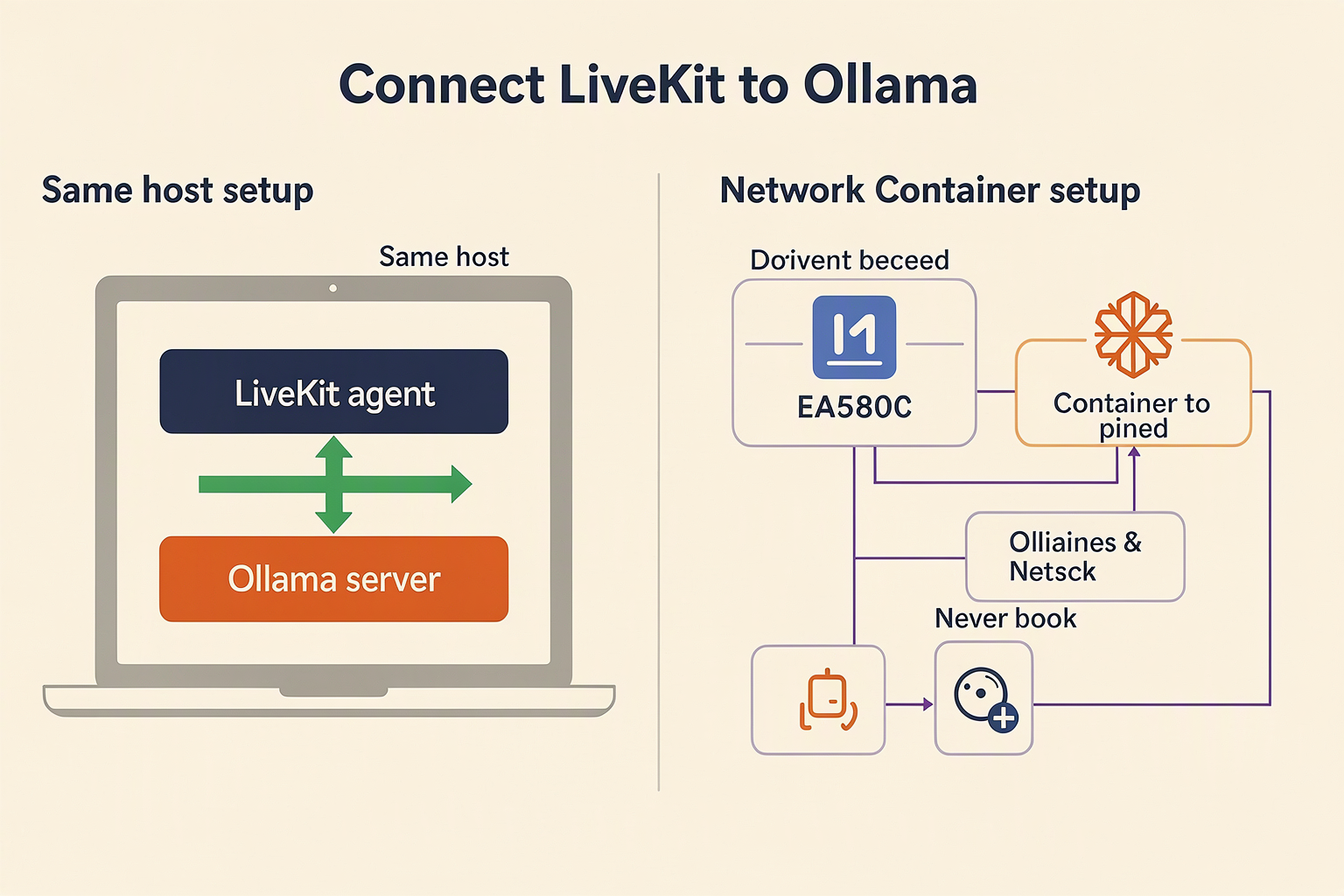
Connect Ollama to LiveKit by passing openai.LLM.with_ollama(model="llama3.1", base_url="http://localhost:11434/v1") into your existing AgentSession. As of November 2026, LiveKit Documentation shows this helper as the Ollama integration path through the OpenAI plugin; you do not need a separate Ollama plugin.
How do I prepare Ollama for a LiveKit agent?
Your Ollama server must be running, and the model identifier supplied to LiveKit must match an available model. For this example, download llama3.1 and start Ollama if its service is not already running:
ollama pull llama3.1
ollama serve
Run ollama serve in a separate terminal. If Ollama is already listening on its port, use the existing service rather than starting another instance.
Install the LiveKit integration in your agent project:
uv add "livekit-agents[openai]~=1.8"LiveKit Documentation’s Ollama guide specifies livekit-agents[openai]~=1.8 as of November 2026. Keep your project lockfile so development and deployment resolve the same dependencies.
How do I configure with_ollama in Python?
Replace the LLM configuration in the session you already created, leaving your speech-to-text and text-to-speech configuration unchanged:
import os

from livekit.agents import AgentSession
from livekit.plugins import openai

ollama_llm = openai.LLM.with_ollama(
    model=os.getenv("OLLAMA_MODEL", "llama3.1"),
    base_url=os.getenv(
        "OLLAMA_BASE_URL",
        "http://localhost:11434/v1",
    ),
)

session = AgentSession(
    llm=ollama_llm,
    # Retain your existing STT, TTS, and VAD settings here.
)
This is session configuration, not a complete agent entrypoint. Keep your existing room connection, agent instructions, and session.start(...) flow.
The important distinction is the endpoint: this helper connects through Ollama’s OpenAI-compatible /v1 interface, rather than Ollama’s native /api/chat route. The model name identifies the backend model; it is not an OpenAI model identifier.
How do I test Ollama before starting LiveKit?
From the same machine or container that runs your agent, test the endpoint directly:
curl http://localhost:11434/v1/chat/completions \
  -H "Content-Type: application/json" \
  -d '{
    "model": "llama3.1",
    "messages": [
      {"role": "user", "content": "Say hello in one sentence."}
    ],
    "stream": true
  }'
Use this sequence to isolate failures:
- Confirm connectivity: a connection error points to the server address, port, or network.
- Confirm model availability: check
ollama listif the requested model cannot be found. - Confirm streaming: inspect whether response chunks arrive before the request finishes.
- Run your LiveKit agent: test a short conversation before enabling tools.
A successful streamed completion validates the basic backend path, but does not prove tool calling works. Test tool execution separately with the exact model you intend to deploy.
Why does localhost fail after deployment?
localhost means the environment running the agent, not your development laptop. A remote LiveKit agent cannot reach laptop-hosted Ollama through http://localhost:11434/v1; inside a container, that address refers to the container itself.
Set OLLAMA_BASE_URL to an endpoint reachable from the deployed agent. Prefer private networking or an authenticated proxy, and do not expose an unprotected model server publicly.
For a managed-backend alternative, CallMissed supports OpenAI-compatible chat completions as of November 2026. That uses the generic endpoint configuration described earlier—not the Ollama-specific helper.
How do I build a custom LiveKit LLM class with streaming, cancellation, and tool calls?
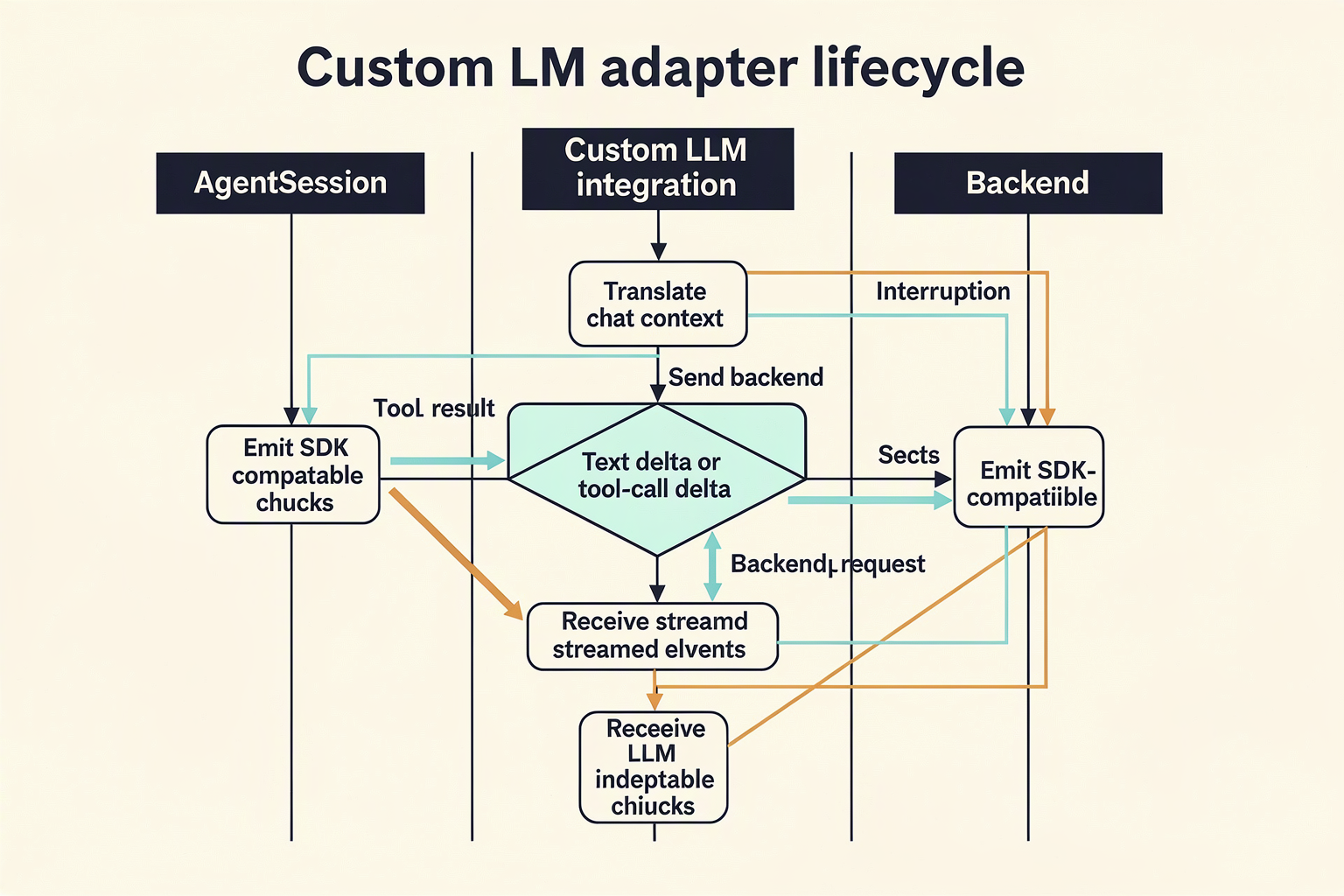
Build your custom LiveKit LLM class by subclassing the OpenAI plugin when your backend supports OpenAI-format requests. This preserves LiveKit’s streaming and tool-call integration; implement a separate llm.LLM and llm.LLMStream adapter only when your backend uses a different protocol.
As of November 2026, LiveKit Documentation confirms that OpenAI-compatible providers can use the OpenAI plugin without a separate integration. The example below follows that approach rather than inventing a new streaming protocol.
How do I create a custom backend class?
1. Keep backend configuration inside a small subclass. Using the installed OpenAI plugin also avoids manually constructing version-sensitive LiveKit stream events.
import os
from livekit.plugins import openai

class CustomBackendLLM(openai.LLM):
    def __init__(self):
        super().__init__(
            base_url=os.environ["CUSTOM_LLM_BASE_URL"],
            api_key=os.environ["CUSTOM_LLM_API_KEY"],
            model=os.environ["CUSTOM_LLM_MODEL"],
        )
Set the base URL to your backend’s OpenAI-compatible API root, not its complete chat-completions endpoint. Choose a model identifier that your backend actually exposes.
As of November 2026, LiveKit Documentation’s Ollama guide specifies livekit-agents[openai]~=1.8; pin your tested dependency version because adapter interfaces can change.
How do I test streamed output and cancellation?
2. Consume the stream through an asynchronous context manager. This test isolates LLM behavior before speech recognition or synthesis enters the pipeline.
import asyncio
from livekit.agents import llm

async def stream_answer(model):
    ctx = llm.ChatContext()
    ctx.add_message(role="user", content="Explain SIP in two sentences.")

    async with model.chat(chat_ctx=ctx) as stream:
        async for chunk in stream:
            delta = chunk.delta
            if delta is not None and delta.content:
                print(delta.content, end="", flush=True)

async def main():
    model = CustomBackendLLM()
    try:
        task = asyncio.create_task(stream_answer(model))
        await asyncio.sleep(0.5)  # Test interruption, not a timeout policy.
        task.cancel()
        try:
            await task
        except asyncio.CancelledError:
            pass
    finally:
        await model.aclose()

asyncio.run(main())
The 0.5-second delay is an illustrative test value, not a LiveKit latency benchmark. Remove the cancellation lines and await stream_answer(model) directly to inspect a complete response.
Cancellation must unwind the stream context. Do not swallow CancelledError inside your adapter or leave a background producer running; also verify whether your backend stops generation when its client disconnects.
How do I connect tool calls to the agent?
3. Register tools on the agent instead of executing them inside the text-stream loop. LiveKit needs structured tool-call events, not tool names embedded in generated prose.
from livekit.agents import Agent, AgentSession, function_tool

class SupportAgent(Agent):
    def __init__(self):
        super().__init__(
            instructions="Use lookup_ticket when asked for ticket status."
        )

    @function_tool
    async def lookup_ticket(self, ticket_id: str) -> str:
        """Look up a support ticket by its identifier."""
        # Replace this demonstration response with an authorized lookup.
        return f"Ticket {ticket_id}: awaiting review"

session = AgentSession(llm=CustomBackendLLM())
# Pass SupportAgent() to session.start() in your existing room setup.
Your backend must accept tool schemas and stream valid tool-call identifiers, names, and argument fragments. Ordinary text streaming does not prove tool compatibility.
What changes for a backend that is not OpenAI-compatible?
4. Implement a native adapter only when necessary. Subclass llm.LLM for the configuration and chat() entry point, then llm.LLMStream for response production, using your installed SDK’s interfaces.
The adapter must:
- Translate conversation history, tool definitions, and tool results.
- Emit LiveKit text deltas and assemble fragmented tool-call arguments.
- Close the upstream stream on cancellation or failure.
- Distinguish retryable transport failures from invalid requests.
Test interruption during both text generation and tool-argument streaming before deployment. Retry cautiously: replaying a request after a tool executes can duplicate its side effects.
How do Pydantic AI and LangGraph fit into LiveKit tool calling?
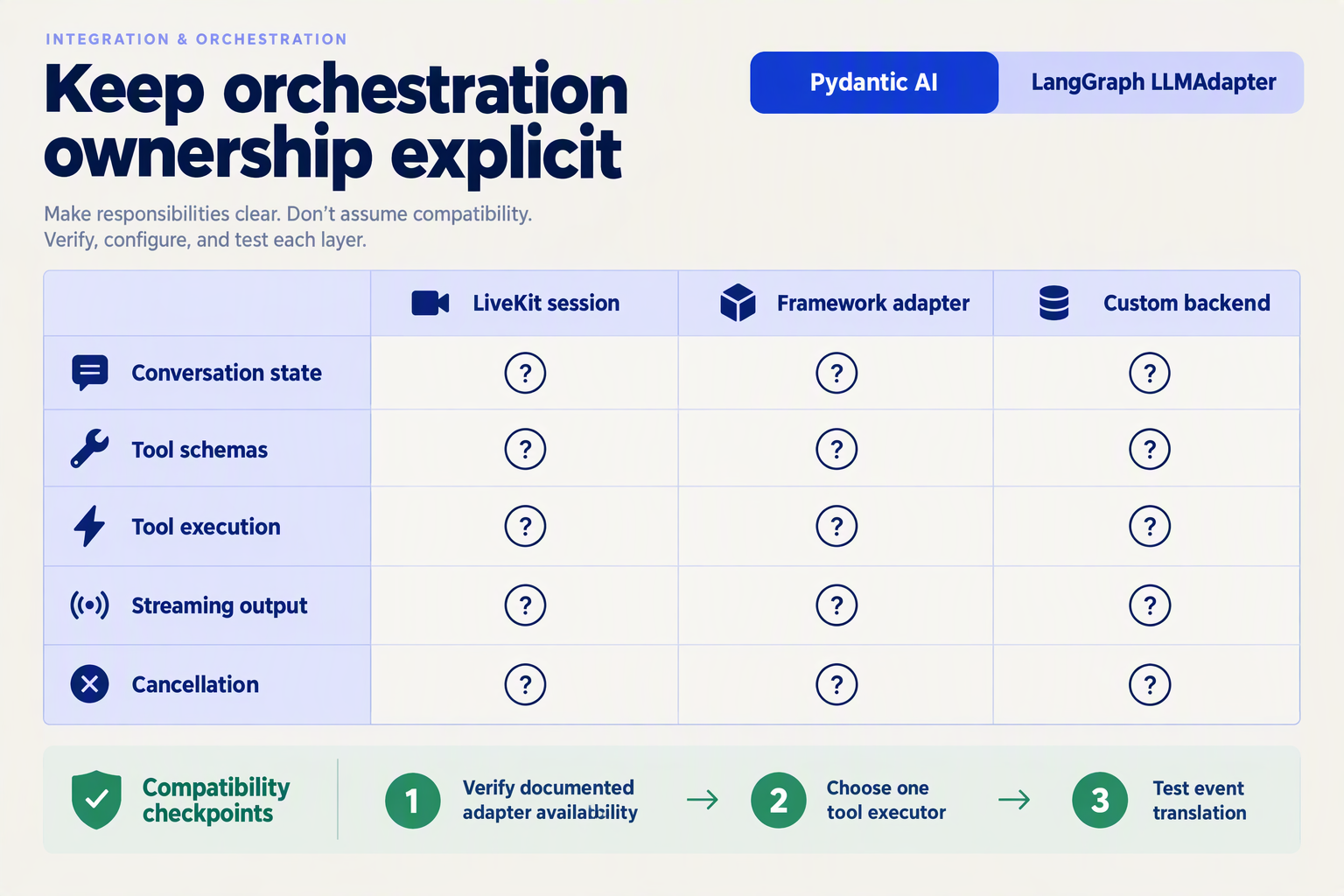
Pydantic AI and LangGraph fit behind LiveKit tools, not in place of LiveKit’s realtime session. When using LiveKit with a custom LLM backend, expose narrowly scoped tools to the conversational model, then delegate typed agent work to Pydantic AI or stateful workflows to LangGraph.
As of November 2026, LiveKit Documentation explains that its OpenAI plugin can connect to compatible providers “without a separate integration.” That describes model connectivity; adding an orchestration framework is a separate application-design decision, not a requirement for connecting your backend.
Should I use Pydantic AI, LangGraph, or native LiveKit tools?
The following comparison describes integration patterns as of November 2026, rather than promising a built-in adapter for either framework.
| Requirement | Native LiveKit tool | Pydantic AI behind tool | LangGraph behind tool |
|---|---|---|---|
| Simple database lookup | Usually sufficient | Optional typed processing | Usually unnecessary |
| Structured agent result | Validate tool output | Define an output schema | Validate graph output |
| Branching workflow | Write application logic | Delegate bounded agent work | Model explicit nodes and edges |
| Persistent workflow state | Manage separately | Supply application dependencies | Configure checkpointing |
| Voice-facing response | Return concise text | Summarize validated output | Summarize final graph state |
Use the smallest orchestration layer that solves the problem. An order-status lookup rarely needs a graph; an approval workflow spanning several systems may benefit from explicit state transitions.
How do I wrap these frameworks in LiveKit tools?
Keep the existing AgentSession and custom LLM configuration. Add tools to its LiveKit agent, injecting a configured Pydantic AI agent or compiled LangGraph workflow.
This wrapper assumes your Pydantic AI agent returns LookupResult, and your graph accepts request and returns spoken_summary:
from pydantic import BaseModel
from pydantic_ai import Agent as PydanticAgent
from livekit.agents import Agent, RunContext, function_tool
from langgraph.graph.state import CompiledStateGraph


class LookupResult(BaseModel):
    spoken_summary: str


class SupportAgent(Agent):
    def __init__(
        self,
        lookup_agent: PydanticAgent[None, LookupResult],
        workflow: CompiledStateGraph,
    ):
        super().__init__(
            instructions="Help customers. Use tools for verified answers."
        )
        self.lookup_agent = lookup_agent
        self.workflow = workflow

    @function_tool
    async def lookup(self, context: RunContext, question: str) -> str:
        """Retrieve a verified answer to a customer question."""
        result = await self.lookup_agent.run(question)
        return result.output.spoken_summary

    @function_tool
    async def run_workflow(
        self, context: RunContext, request: str
    ) -> str:
        """Run a customer-support workflow."""
        state = await self.workflow.ainvoke({"request": request})
        return LookupResult.model_validate(state).spoken_summary
Pass SupportAgent(lookup_agent, workflow) where your existing session starts its agent. Configure the Pydantic AI agent’s provider separately: LiveKit’s backend settings do not automatically propagate into a nested agent or graph.
How do I prevent duplicate tool loops and unsafe actions?
Choose one owner of each reasoning loop:
- LiveKit owns conversation: its LLM decides when to invoke a tool.
- The delegated framework owns bounded work: Pydantic AI performs the lookup, or LangGraph executes the workflow.
- The tool returns a compact result: LiveKit turns that result into the spoken response.
Avoid giving both layers unrestricted access to the same action tools. Otherwise, nested reasoning can duplicate requests and make failures harder to diagnose.
Before production, test:
- Timeouts and cancellation: interruption should not leave untracked work running.
- Authorization: obtain customer identity from trusted application context, not model-generated arguments.
- Idempotency: retries must not create duplicate bookings or payments.
- Validation: schema-valid output is not proof that an answer is factually correct.
The practical boundary is simple: LiveKit manages the voice interaction; your framework manages the delegated task. Test those layers independently before testing the full conversation.
Which configuration mistakes break a LiveKit custom LLM connection?
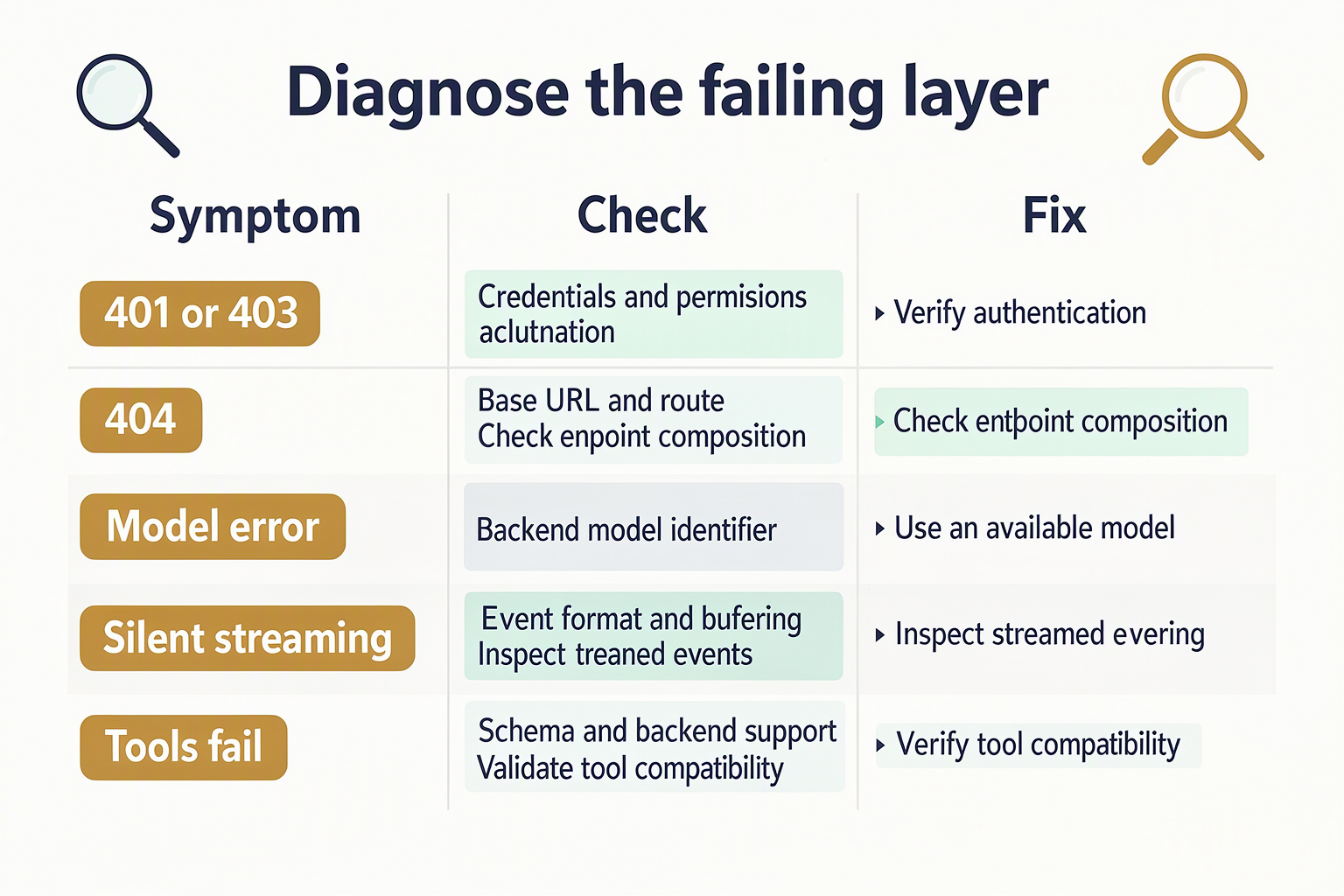
A LiveKit custom LLM connection can fail because of an incorrect API path, mismatched credentials, an unavailable model, unreachable networking, or incompatible streaming and tool-call behavior. Diagnose the backend from the agent’s runtime environment before changing speech recognition, speech synthesis, or room configuration.
As of November 2026, LiveKit Documentation identifies the OpenAI plugin as the connection path for providers exposing OpenAI-compatible APIs. Compatibility still needs testing against the capabilities your particular agent uses.
Which configuration errors should you check first?
Treat HTTP status codes as diagnostic clues, not definitive explanations: gateways and reverse proxies can return different responses for the same underlying mistake.
| Configuration mistake | Typical signal | What to check | Corrective action |
|---|---|---|---|
Wrong base_url | HTTP 404, HTML response, unexpected route | The final request path | Use the documented API root; do not supply a complete /chat/completions URL as the base. |
| Wrong backend credentials | HTTP 401 or 403 | Key source and authorization requirements | Supply the LLM provider’s credentials, not LiveKit room credentials. |
| Incorrect model identifier | Model-not-found or access error | Exact backend model ID and account access | Use an available model’s API identifier, not its display name. |
| Unreachable local endpoint | Connection refused or timeout | DNS, port, container routing, firewall | Test from the worker; localhost refers to that worker’s environment. |
| Incompatible streaming | Non-streamed JSON, malformed events, no text | Response to stream: true | Verify OpenAI-format streaming output and proxy buffering behavior. |
| Unsupported tools or parameters | HTTP 400, rejected fields, missing tool calls | Model-specific capabilities and request body | Start without optional parameters or tools; add each capability separately. |
How do you isolate a backend failure from a LiveKit failure?
Run this standalone streaming probe inside the same container or machine as your LiveKit worker. Set LLM_BASE_URL to your backend’s documented API root, LLM_API_KEY to its credential, and LLM_MODEL to its exact model identifier.
import itertools
import json
import os
import urllib.request

base = os.environ["LLM_BASE_URL"].rstrip("/")
payload = {
    "model": os.environ["LLM_MODEL"],
    "messages": [{"role": "user", "content": "Reply with hello."}],
    "stream": True,
}

request = urllib.request.Request(
    f"{base}/chat/completions",
    data=json.dumps(payload).encode(),
    headers={
        "Authorization": f"Bearer {os.environ['LLM_API_KEY']}",
        "Content-Type": "application/json",
    },
    method="POST",
)

with urllib.request.urlopen(request, timeout=30) as response:
    print("HTTP:", response.status)
    print("Content-Type:", response.headers.get("Content-Type"))
    for line in itertools.islice(response, 8):
        print(line.decode().rstrip())
This probe assumes Bearer authentication and a Chat Completions-compatible route. Adapt authentication if your backend documents a different scheme; it deliberately stops after eight lines and does not validate an entire conversation.
Interpret the result in order:
- Connection failure: investigate network reachability before plugin settings.
- HTTP rejection: inspect the response body for authentication, routing, model, or parameter errors.
- Successful event stream: inspect event structure; HTTP 200 alone does not prove compatibility.
- Probe works, agent fails: compare the plugin’s actual request with this minimal request, especially tools and optional fields.
What should you inspect before changing providers?
Confirm that your session receives the configured livekit.plugins.openai.LLM instance rather than a different LLM object. As of November 2026, LiveKit Documentation separately describes LiveKit Inference and the OpenAI-compatible plugin path; their configuration should not be treated as interchangeable.
Keep diagnostic logs useful but safe:
- Record the model ID, sanitized endpoint, status, and error body.
- Never log API keys or authorization headers.
- Restore tools and optional parameters one at a time.
As of November 2026, CallMissed’s developer AI API includes usage and request logs, which can help teams inspect gateway-side requests alongside worker logs. Backend observability complements—not replaces—testing the complete LiveKit conversation.
Frequently Asked Questions
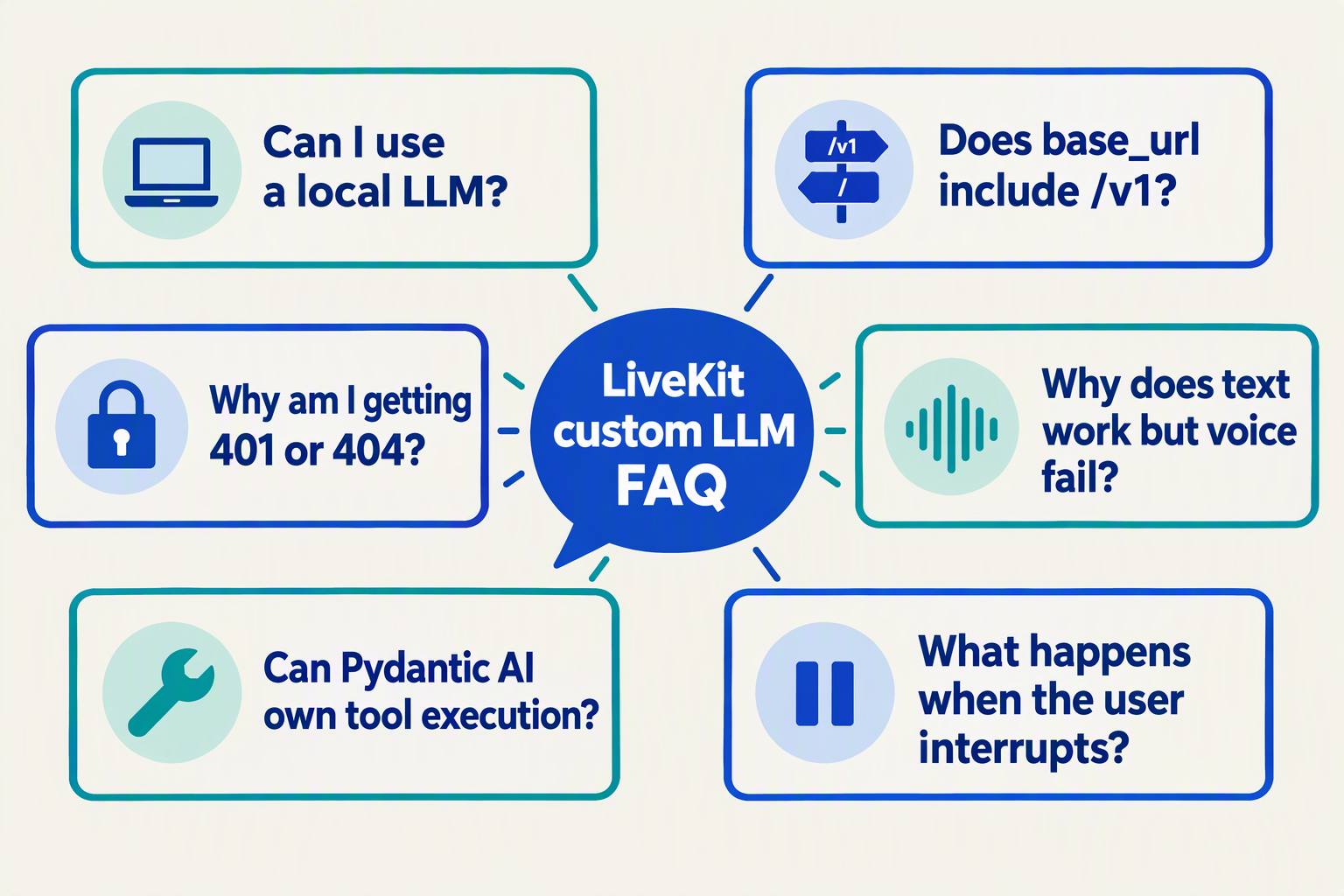
How do I troubleshoot LiveKit custom LLM providers returning 401 or 403 errors?
Why do LiveKit custom LLM providers return 404 or “model not found”?
/v1 prefix, accidental duplicate path segments, and the exact model identifier rather than assuming a display name is valid. As of November 2026, LiveKit Documentation confirms that the OpenAI plugin supports providers exposing OpenAI-format APIs, but that compatibility does not establish which model names or routes your backend accepts.Why can my deployed LiveKit agent not connect to a local Ollama backend?
localhost, because that hostname points to the machine or container executing the agent. Test connectivity from the agent runtime, then check the server’s listening interface, container networking, firewall rules, and private-network routing; use authenticated, protected connectivity rather than exposing an unprotected inference endpoint publicly. As of November 2026, LiveKit Documentation’s Ollama guide uses openai.LLM.with_ollama, but the helper does not make a locally hosted server remotely reachable.How do I troubleshoot LiveKit custom LLM providers that connect but do not stream responses?
Why do function calls fail when I use a custom LLM backend with LiveKit?
How can I tell whether silence comes from the LLM backend or LiveKit’s voice pipeline?
Which official resources should I use to test and deploy my integration?
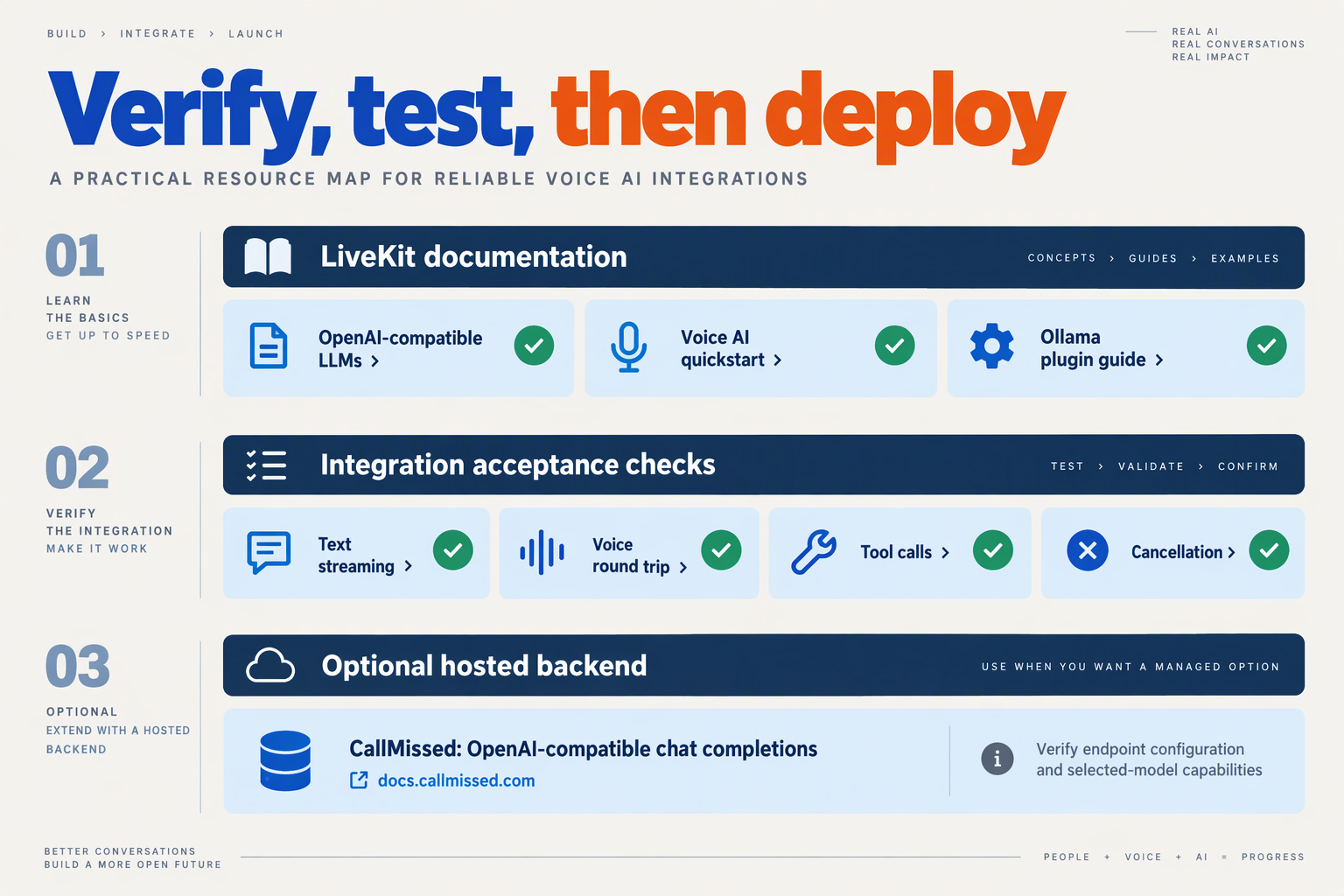
Use LiveKit Documentation’s OpenAI-compatible LLMs guide as your integration reference, the Voice AI quickstart for a working agent baseline, and your backend’s official API documentation to verify supported capabilities. Before deployment, test the complete voice session from the environment that will actually run your agent—not just a standalone LLM request from your laptop.
Which LiveKit documentation should I follow first?
Read these official resources in order, using each to answer a different implementation question:
- OpenAI-compatible LLMs — LiveKit Documentation: establishes the connection path for a custom backend. As of November 2026, LiveKit Documentation states that its OpenAI plugin can connect to providers exposing OpenAI-format APIs without a separate integration.
- Models overview — LiveKit Documentation: explains model integration options. Use this to distinguish your custom endpoint configuration from examples that select models through LiveKit Inference.
- Voice AI quickstart — LiveKit Documentation: supplies the baseline agent setup. As of November 2026, LiveKit Documentation specifies Python 3.10 or later and uses the uv package manager in this quickstart.
- Building AI agents — LiveKit Documentation: explains the runtime architecture. As of November 2026, LiveKit Documentation describes agents as room participants that process realtime media and data streams.
Keep the working quickstart as your control case. Change the LLM configuration first, then add application-specific behavior; changing several components simultaneously makes failures harder to isolate.
Which official guide applies to my backend?
For a generic compatible endpoint, follow OpenAI-compatible LLMs alongside the backend provider’s own API reference. Check the required base URL, exact model identifier, authentication method, and supported request parameters rather than assuming compatibility covers every feature.
For a local model server, use Ollama LLM plugin guide — LiveKit Documentation. As of November 2026, that guide shows uv add "livekit-agents[openai]~=1.8" and the openai.LLM.with_ollama helper. Treat the documented dependency constraint as a reproducible starting point, not a reason to upgrade an existing application without testing.
For Azure, consult Azure OpenAI LLM plugin guide — LiveKit Documentation instead of copying generic endpoint settings. Provider-specific configuration deserves its own reference.
For a gateway such as CallMissed, consult the gateway’s documentation as well. As of November 2026, CallMissed’s verified product facts list OpenAI-compatible chat completions, streaming, function calling, and request logs—relevant capabilities to validate through your LiveKit integration, not a substitute for integration tests.
What should I test before deploying the agent?
Use a small acceptance checklist with observable pass criteria:
- Basic conversation: a spoken question produces a relevant, audible answer.
- Streaming: the session consumes incremental output without hanging or truncating the response.
- Tools: if required, one tool call completes and its result reaches the conversation.
- Failure handling: invalid credentials and an unavailable backend produce diagnosable errors without exposing secrets.
- Network access: the deployed agent can reach the configured endpoint. A laptop’s
localhostis not a remote server’slocalhost.
Record the dependency versions, model identifier, configuration, and test outcome. This creates a useful baseline when either the backend or agent dependencies change.
How should I use official resources during deployment?
Consult LiveKit’s current deployment documentation for your chosen hosting route and your backend’s operational documentation for credentials, quotas, and endpoint access. Avoid treating a quickstart as a complete production checklist.
Run the same acceptance tests after deployment, with credentials supplied through your hosting environment’s secret-management mechanism. Deployment readiness means the hosted voice session works end to end, not merely that the process starts or the LLM endpoint returns HTTP success.
Conclusion
To use LiveKit with a custom LLM backend, configure the LiveKit OpenAI plugin with your backend’s base URL, API key, and model identifier, then attach the configured LLM to AgentSession. As of November 2026, LiveKit Documentation describes this integration path for OpenAI-compatible providers without requiring a separate provider-specific plugin.
The central lesson is to separate connection setup from conversation-level validation. Getting an authenticated response proves that your endpoint is reachable; it does not prove that streaming, tool calls, and the complete voice-agent pipeline behave correctly.
What should you remember when configuring a custom LiveKit LLM?
- Start with the documented environment. As of November 2026, LiveKit Documentation specifies Python 3.10 or later, and its Ollama guide uses
livekit-agents[openai]~=1.8. Establish a working baseline before introducing application logic, so dependency problems do not get mistaken for backend failures.
- Keep backend configuration explicit. Supply the base URL, credentials, and exact model identifier through environment variables rather than hard-coded secrets. Pass the configured LLM into
AgentSession, while keeping speech recognition and speech synthesis independently configurable.
- Test the smallest useful conversation first. Verify authentication, model availability, and streamed responses before adding tools. OpenAI-compatible is a starting point, not a guarantee of identical behavior: supported parameters and tool-call formatting still require testing against your chosen backend.
- Troubleshoot one layer at a time. Check authorization, endpoint paths, model names, and tool support separately. For Ollama, distinguish an endpoint reachable from your development machine from one reachable by a remotely deployed agent; as of November 2026, LiveKit Documentation provides the
openai.LLM.with_ollamahelper for this integration.
What should developers watch as custom LLM integrations evolve?
Watch for changes in plugin versions, streaming behavior, and tool-call compatibility, rather than assuming a shared API format makes every backend interchangeable. Keeping a minimal conversation test alongside your agent gives you a repeatable way to evaluate backend changes without replacing unrelated voice components.
That discipline also makes shared model gateways worth exploring. As of November 2026, CallMissed’s verified product fact sheet lists an OpenAI-compatible developer AI API with one API key and balance for 146 models, including 44 general-purpose LLMs. CallMissed is an option to explore for shared model access, while applying the same endpoint and capability checks described here.
Your next step is practical: configure one backend, run one minimal conversation, and document what succeeds before expanding the agent. Can your integration reliably stream a response through AgentSession—and can you identify the failing layer when it cannot?
Related Reading
- Switch LLM providers without rewriting your agent code
- unified LLM API gateway: Claude, Gemini and GPT Compared
- Proxy-based LLM observability for Support API Teams